
Photos and videos are now part of everyday life. Whether you’re sharing travel pictures, making Instagram reels, recording family moments or creating content for your blog, good editing makes a real difference. The right lighting and colours can transform a simple photo, and the right music, transitions and captions can make an ordinary video far more engaging.
In 2026, there are plenty of editing apps for Android, iPhone, Windows and Mac. Some are built for beginners who want quick edits, while others offer professional tools. But many apps look similar at first, and their features, subscription costs and export quality can be very different. This guide will help you understand what to look for and how to pick the best one for you.
Understand What Type of Editing You Need
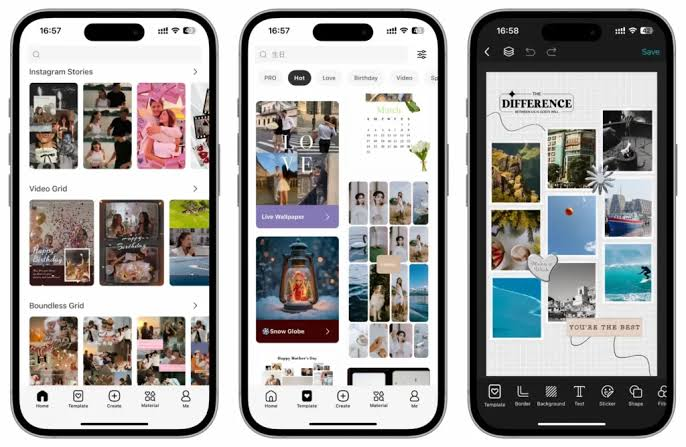
Before downloading anything, think about the kind of content you usually create. Not everyone needs professional software, and a heavy app can actually slow you down if all you need is a quick touch-up. A good way to start is by looking at what you’ve posted or saved over the last few months. Are most of your files photos, short reels, long videos or graphics with text? Once you know your pattern, the choice becomes much easier.
For example, if you regularly share food pictures, you’ll want brightness, colour correction and background editing tools. If you make YouTube videos, you’ll need trimming, audio editing, subtitles and multiple video layers.
Photo editing requirements
If photography is your main interest, look for an app that offers:
- Brightness and contrast adjustments
- Background removal and blur effects
- Filters and colour correction
- Cropping and resizing options
- Object removal tools
- Portrait and skin retouching features
The best photo edits are usually the ones people don’t notice. Look for apps that let you adjust the strength of each effect, so the result stays natural.
Video editing requirements
For video editing, look for apps that include:
- Video trimming and merging
- Music and sound effects
- Text and subtitle options
- Slow-motion and speed controls
- Transitions and animations
- High-quality video exports
If you post regularly, features like templates, automatic captions and easy resizing for different platforms can save a lot of time. Choosing an app based on what you actually need stops you from paying for features you’ll rarely use, and it’s better to master a simple tool than to feel lost in a powerful one.
Compare Popular Photo Editing Apps
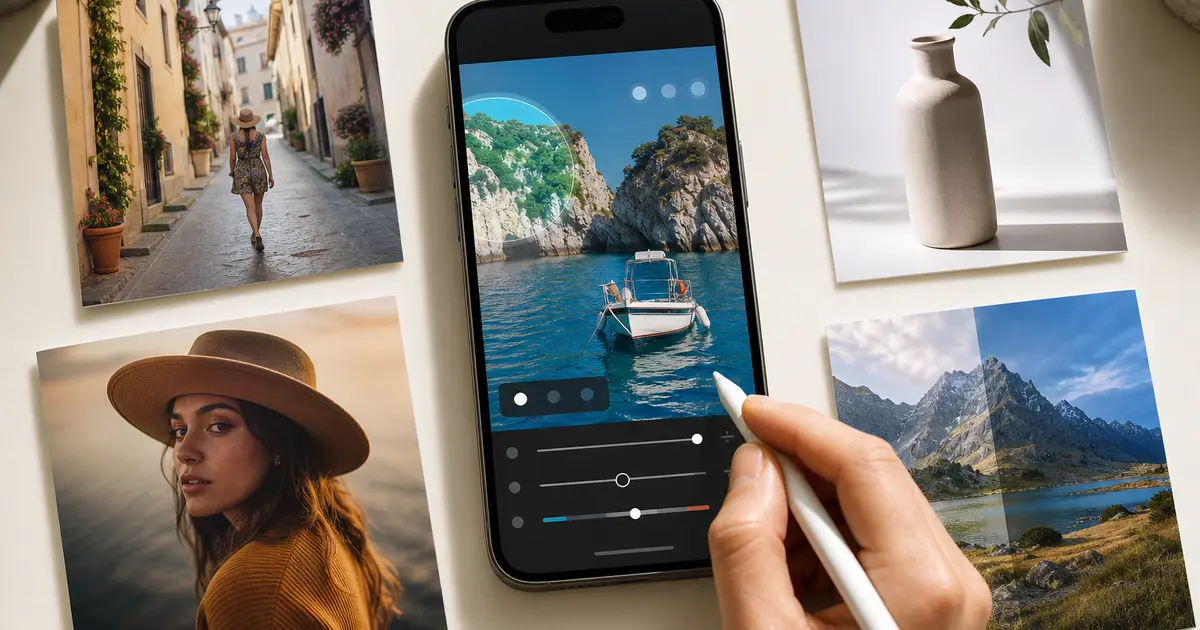
Instead of searching for a single “best” app, think about which one fits the way you work. Many people use two apps together, one for quick fixes and another for design work.
Adobe Lightroom is a strong option if you want more control. It lets you adjust exposure, highlights, shadows, colours and sharpness, and its presets help you give a set of photos a consistent look. That’s handy for travel pictures or a social media profile with a recognisable style. It also supports RAW images and AI-powered tools. It can feel overwhelming at first, and some advanced features need a paid subscription.
Snapseed is a good choice if you want a capable editor without paying. It offers cropping, sharpening, colour adjustments and perspective correction, plus selective edits. If the sky in an outdoor shot is too bright, you can fix just that area. It’s friendly for beginners and everyday mobile photography.
Canva works well when photo editing is only part of your work. It combines image editing with templates and text, so you can make Instagram posts, blog banners, thumbnails and invitations in one place. The free plan is a good starting point, and you can upgrade later if you hit its limits.
Choose a Video Editor That Matches Your Skill Level
Best Photo & Video Editing Apps in 2026
Explore popular editing apps to create beautiful photos, attractive videos and creative social media content.
Lightroom
Photo Editing
Snapseed
Photo Enhancement
Canva
Graphic Design
VN Editor
Video Editing
InShot
Reels Editing
DaVinci Resolve
Professional Editing
Choose the right editing app for your creativity!
A good video editor should make it easy to arrange clips, adjust timing, add sound and finish a video without unnecessary complications. Think about where your videos will end up. A short reel needs quick cuts, captions and music, while a longer YouTube video needs careful audio and better organisation.
CapCut is popular with short-form creators. It offers transitions, effects, captions, music and timeline editing, and its templates let beginners get a polished result in minutes by swapping in their own clips. Some features need a paid plan, and availability can vary by region and platform.
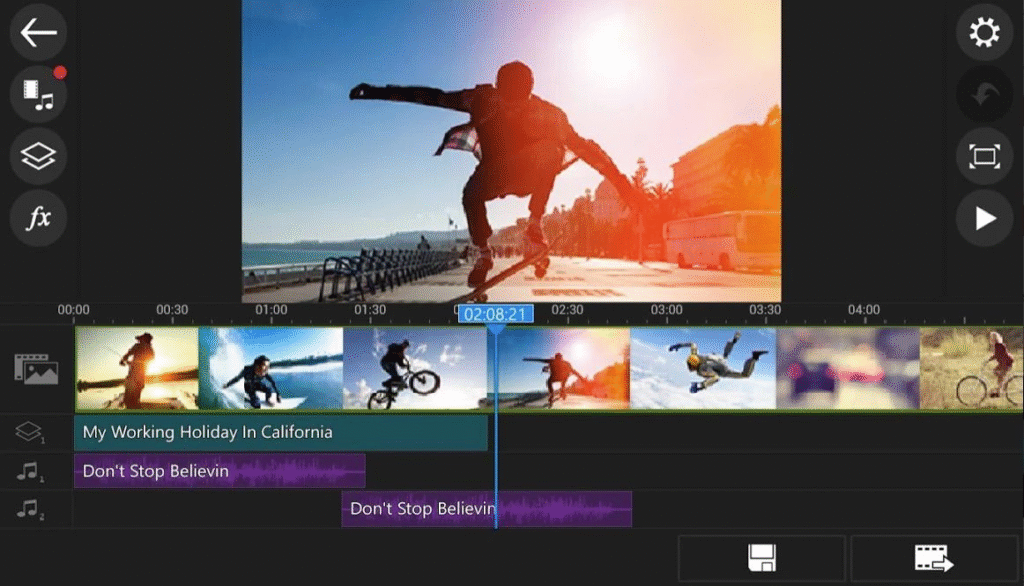
VN Video Editor sits between simple template apps and professional software. It offers timeline editing, multiple video and audio tracks and speed controls, so you can layer music under a voiceover or time text precisely. It’s a good step up when you’ve outgrown basic apps.
DaVinci Resolve is worth a look if you’re moving towards professional production. It includes advanced editing, colour grading, visual effects and audio tools, and the free version is generous. The interface takes time to learn and works best on a capable computer, but it rewards the effort.
Check Whether the App Is Easy to Use
An app can have hundreds of features, but that doesn’t make it a good choice. A complicated interface turns simple tasks into frustration. If you only want to crop a photo or add music to a short video, you shouldn’t have to dig through menus.
Check whether the main tools are easy to find. Look for a simple timeline, clearly labelled buttons, helpful tutorials and a quick preview, which lets you experiment and fix mistakes instantly. If you’re a beginner, start with an app that covers the basics. Once you’re comfortable with cropping, filters, transitions and colour adjustments, move on to more advanced options. Learning step by step beats feeling overwhelmed.
Compare Free and Paid Features
Paid apps aren’t automatically better. The right choice depends on how often you edit and what you create. Free versions are usually enough for casual editing, while paid plans make more sense if you edit regularly or work professionally.
| Feature | Free Apps | Paid Apps |
|---|---|---|
| Basic editing | Usually available | Available |
| Filters and effects | Limited or available | More options |
| Premium templates | Often restricted | Usually included |
| AI editing tools | Limited access | More features |
| Cloud storage | Limited | Often more storage |
| Advanced export options | Varies | Depends on plan |
Don’t subscribe just because an app advertises premium features. Use the free version for a few real projects and notice whether you keep hitting the same limitation. Also check for watermarks, export limits and auto-renewal terms. Starting with a monthly plan is a safer way to test a paid app.
Check Export Quality
Editing is only half the process, because the final file is what people actually see. Some apps compress files heavily during export or limit resolution in their free versions. If you create content for Instagram, YouTube or a website, make sure the app supports the resolution and aspect ratios you need. Vertical reels and widescreen videos need different formats, and a good app makes switching easy.
For photos, look for high-resolution JPG or PNG exports, and RAW support if you work with professional images. For videos, check for Full HD or 4K depending on your device, remembering that higher resolution means larger files and longer exports. Before relying on an app, export a test file and compare it with the original. If the difference is obvious, it may not be the right tool.
Look for Useful AI Features
In 2026, many editors include AI tools that cut down repetitive work. Object removal can clear a stranger from the background of a travel photo. Background removal makes product pictures cleaner, and automatic captions help viewers who watch without sound. Some apps also adjust lighting, improve portraits and resize images for different platforms.
Still, treat AI as assistance, not a replacement for your own judgement. An automatic filter may brighten a photo but change its natural colours, and a cutout may leave rough edges around hair. Always review the result before publishing and make small manual corrections where needed. The best results come from combining AI speed with your own eye.
Consider Your Device Performance
Not every app runs smoothly on every device. Advanced video editing uses a lot of memory, storage and processing power, and an app that works well on a new phone may struggle on an older one. A crash in the middle of a project is frustrating, so check the device requirements and free storage before installing. Editing creates temporary files and exports need room to save.
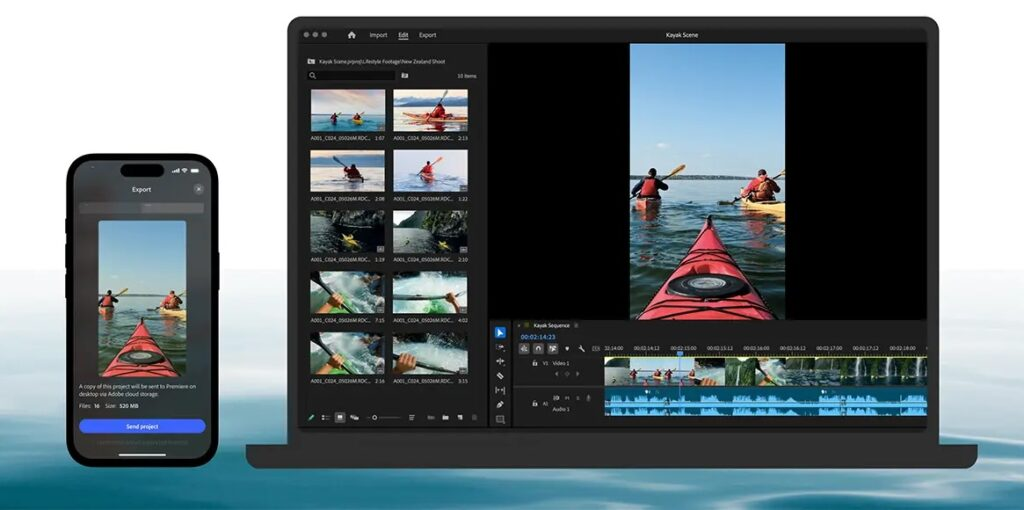
For regular mobile editing, choose an app that runs smoothly on your phone. For longer videos, multiple layers or large files, desktop software offers a bigger screen and more power. Keep battery usage in mind too, since exporting videos can drain your phone quickly, and clear old projects from time to time.
Read Reviews and Test Before Choosing
Ratings and reviews tell you a lot about everyday performance, but don’t rely on stars alone. What matters is the pattern. Read recent reviews to see whether people face crashes, intrusive ads, poor export quality or subscription problems. Recent feedback is more useful because apps change often. Pay extra attention to reviewers who use the app the way you do, such as reel creators or photographers.
Then test the app with a real project. Edit one photo and make a short video, and notice how fast the app feels, how easy the tools are to find and how the export looks. This small step can save you from installing several apps with nearly identical features.